> ## Documentation Index
> Fetch the complete documentation index at: https://docs.startleftsecurity.com/llms.txt
> Use this file to discover all available pages before exploring further.
# Okta SSO Integration
# IdP Configuration
### Okta Configuration
1. Go to Applications
2. Create a new app integration and select SAML 2.0. Click Next.
3. Enter a recognizable App Name such as "StartLeft Platform". Click Next.
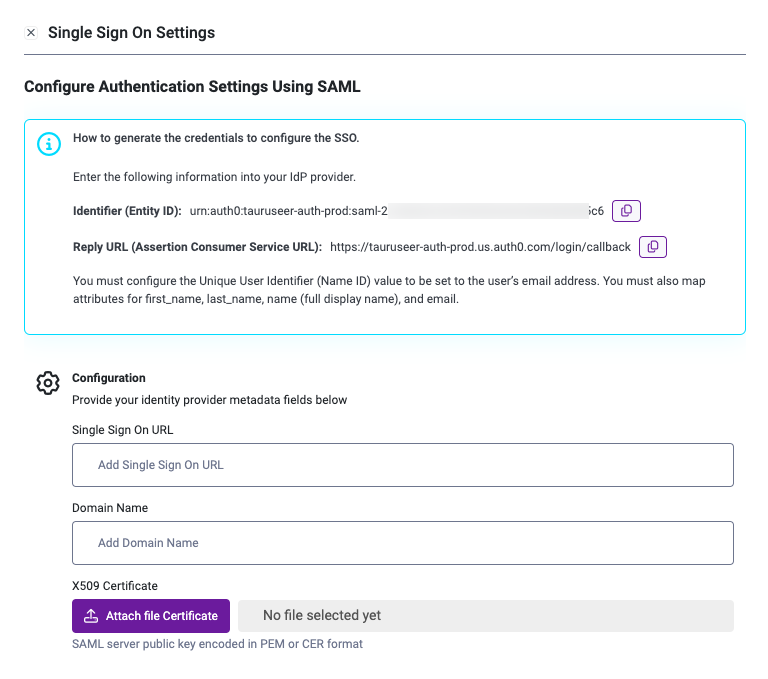
4. Fill in the Single sign-on URL ("Assertion Consumer Service URL") and "Entity ID" fields with the information from the StartLeft Single Sign On Settings.
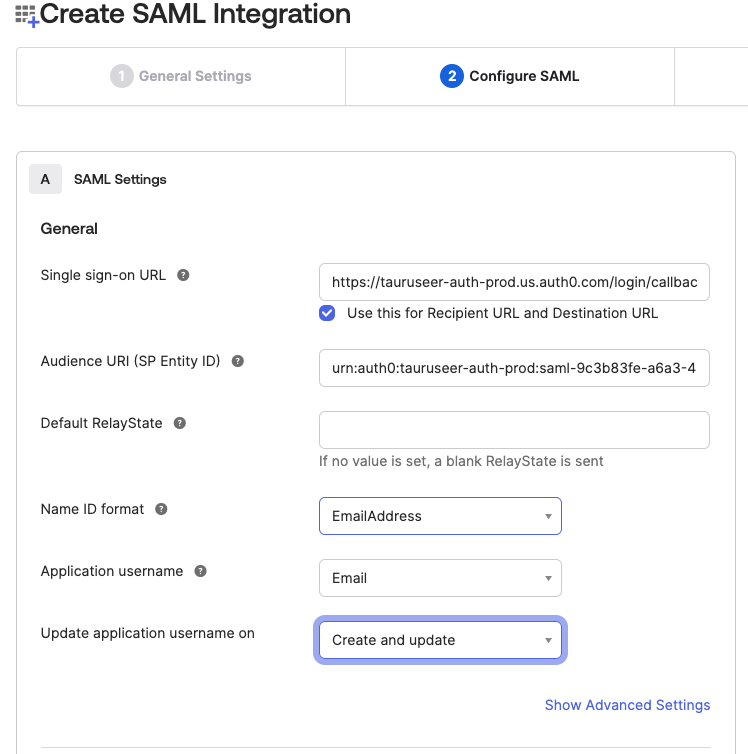 The **SP Entity ID** is the **Identifier (Entity ID)** - the ID of the service provider
The **Single Sign-on URL** is the **Reply URL (Assertion Consumer Service URL)** - the identity provider must
be configured to return the SAML response to the ACS URL:
```
https://tauruseer-auth-prod.us.auth0.com/login/callback
```
Both of these fields can be found in the SLS Platform by navigating to Configure on the left hand menu and selecting SSO settings.
The **SP Entity ID** is the **Identifier (Entity ID)** - the ID of the service provider
The **Single Sign-on URL** is the **Reply URL (Assertion Consumer Service URL)** - the identity provider must
be configured to return the SAML response to the ACS URL:
```
https://tauruseer-auth-prod.us.auth0.com/login/callback
```
Both of these fields can be found in the SLS Platform by navigating to Configure on the left hand menu and selecting SSO settings.
 ### Configure Attributes & Claims
In Entra ID, you must configure the **Unique User Identifier (Name ID)** value to be
set to the user’s email address, in Azure AD this value must be set to ***user.mail***
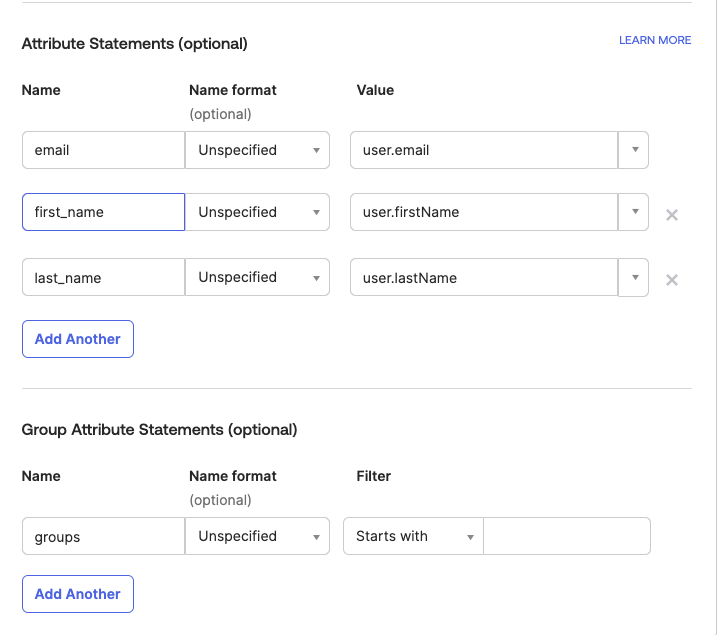
* **email** - set to user.email
* **first\_name** - set to user.firstName
* **last\_name** - set to user.lastName
**Group claims (Optional)** – Set to Groups assigned to the application, the
name of the claim should be defined as **groups**. This may be used in
the future to map users belonging to specific groups to SLS platform
roles (Admin, Dev, .etc).
### Configure Attributes & Claims
In Entra ID, you must configure the **Unique User Identifier (Name ID)** value to be
set to the user’s email address, in Azure AD this value must be set to ***user.mail***
* **email** - set to user.email
* **first\_name** - set to user.firstName
* **last\_name** - set to user.lastName
**Group claims (Optional)** – Set to Groups assigned to the application, the
name of the claim should be defined as **groups**. This may be used in
the future to map users belonging to specific groups to SLS platform
roles (Admin, Dev, .etc).
 Download the signing certificate and ensure the file extension is saved as a .pem file.
In the SLS Platform:
1. Set the Single Sign On URL from Okta
2. Set the Domain name to your company's domain.
3. Upload to the X590 Certificate.
4. Click Save SSO Settings.
Download the signing certificate and ensure the file extension is saved as a .pem file.
In the SLS Platform:
1. Set the Single Sign On URL from Okta
2. Set the Domain name to your company's domain.
3. Upload to the X590 Certificate.
4. Click Save SSO Settings.