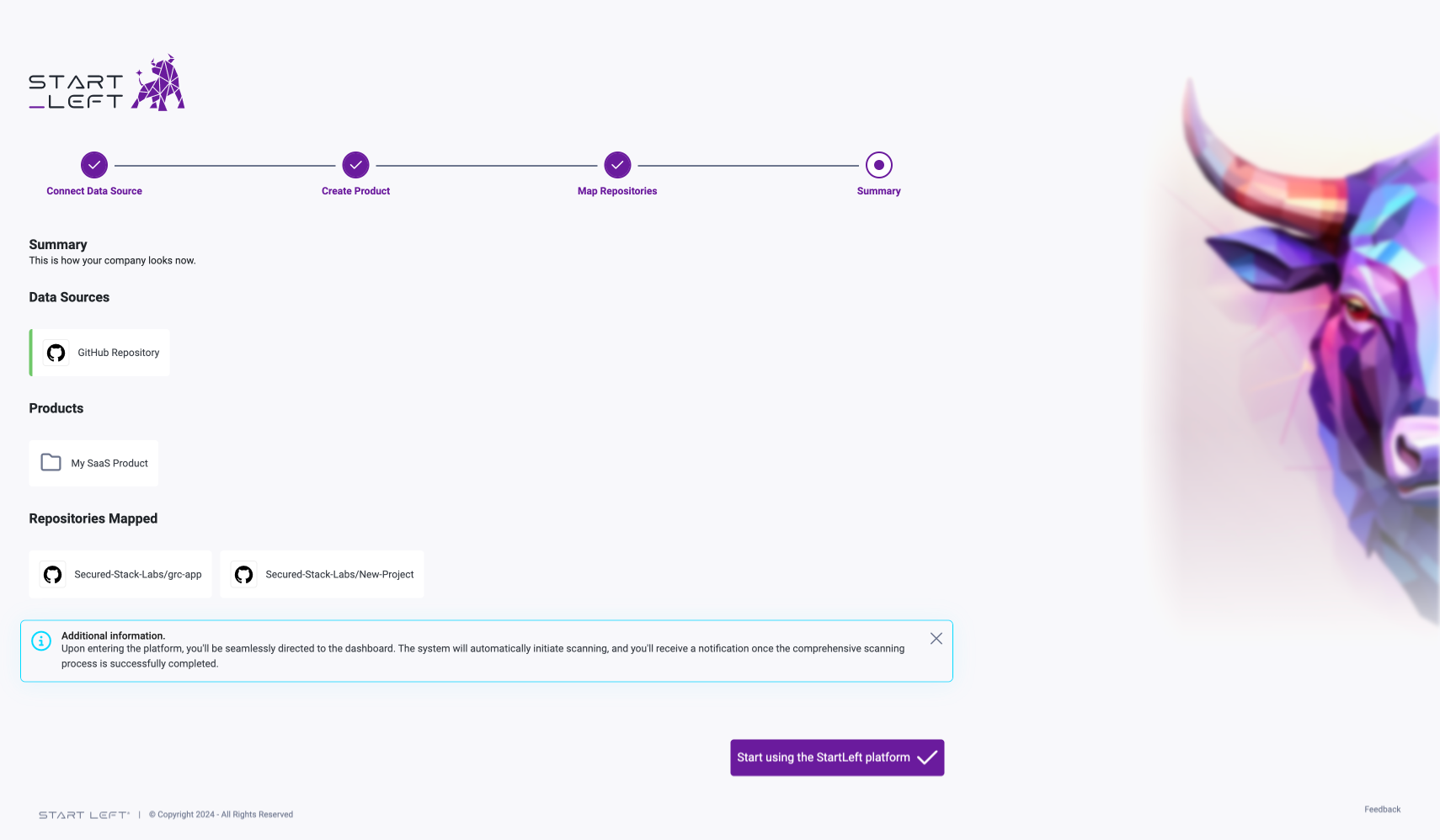
Setting up Your Account
1
Setup an Account
Go to https://startleft.security/ and Login. If this is your first time logging in you will need to establish a password.
2
Configure your Organization
The Start Left Platform will walk-through creating your organization and connecting a code repository.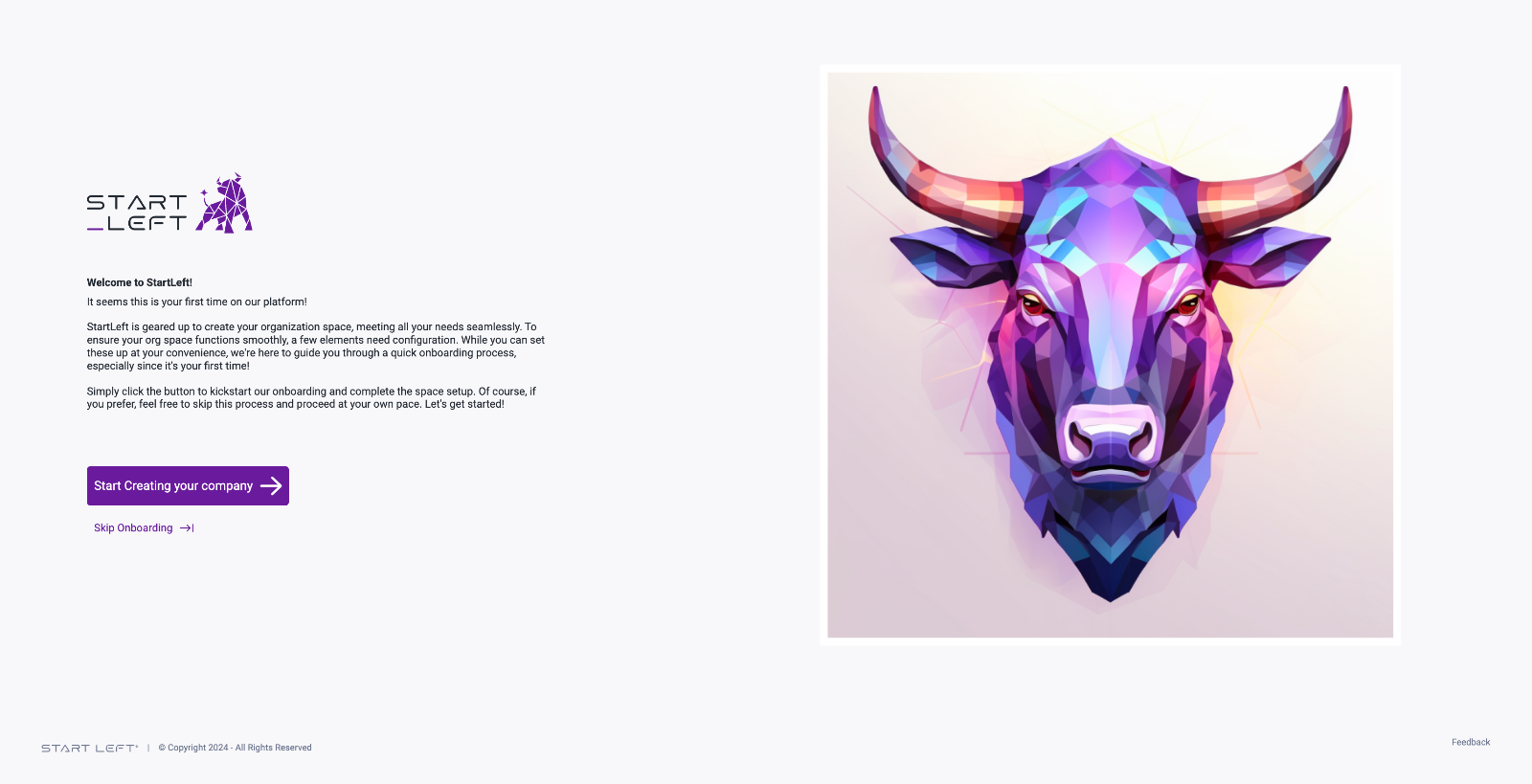
3
Configure your Code Repository Access
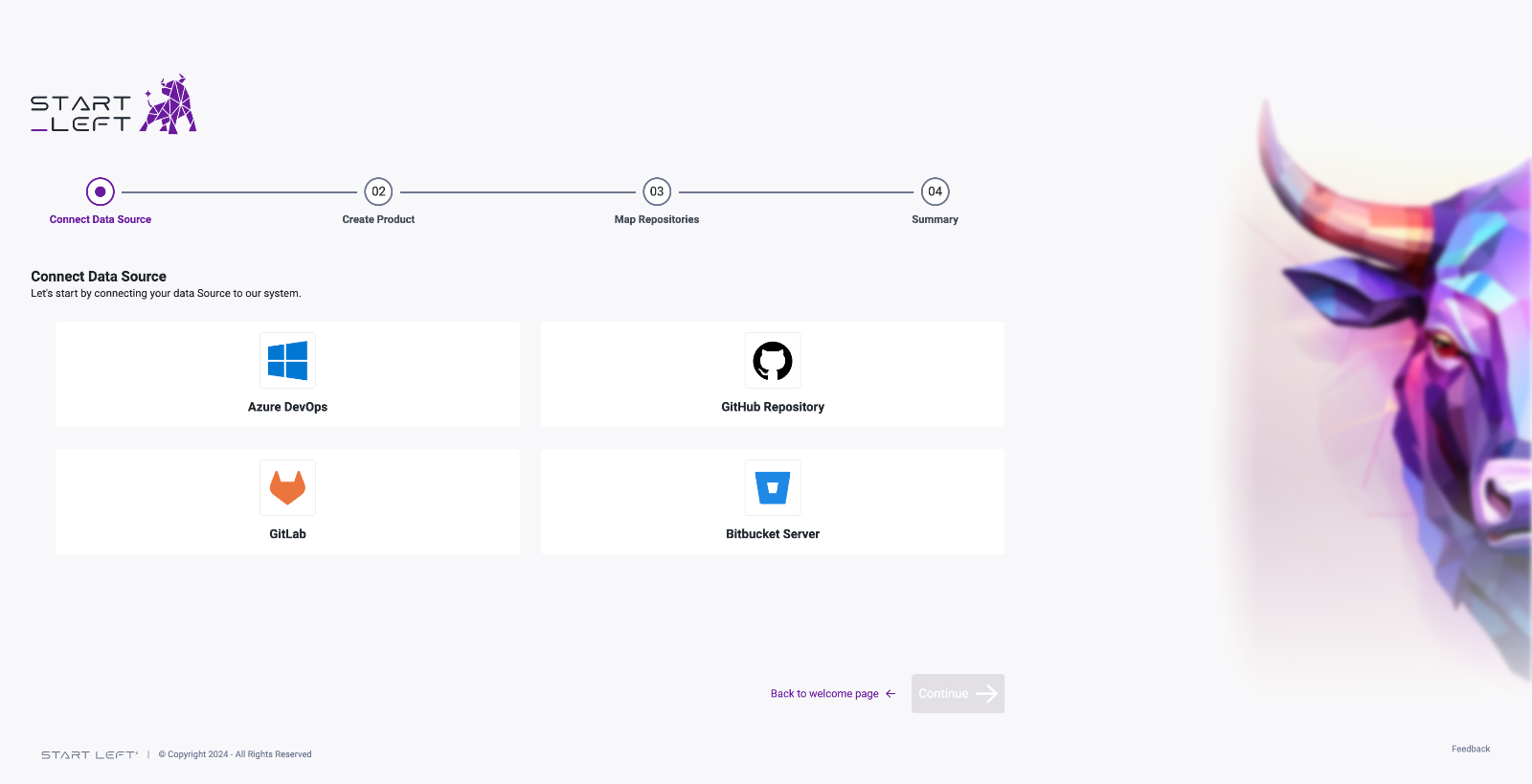
How to connect your GitHub account
How to connect your GitHub account
During the onboarding process, you will be walked thru the process of connecting your GitHub account with
Start Left. You will need to create a GitHub Access Token, go to https://github.com/
- Click on your GitHub Profile Avatar, then Settings, then Developer Settings, then Personal Access Tokens, then Fine-grained Tokens.
- Click on Generate Token and provide a meaningful name that you will recognize such as StartLeft.
- Set the desired Expiration, one year is recommended.
- Select the resource owner.
- Select the desired repositories.
- Set the permissions for Repository contents to Read-only.
- Select Generate Token.
- Copy and paste your newly created personal access token into the Personal access token field.
How to connect your Azure DevOps account
How to connect your Azure DevOps account
During the onboarding process, you will be walked thru the process of connecting your Azure DevOps account with
Start Left. Go to https://dev.azure.com/
- Click on your User icon in the upper right corner.
- Select User settings.
- Personal Access Tokens.
- Select New Token.
- Enter a Token Name (e.g. “Start Left”).
- Under Code check Read scope.
- Click Create.
- Copy and paste your newly created personal access token into the Personal access token field.
How to connect your GitLab account
How to connect your GitLab account
During the onboarding process, you will be walked thru the process of connecting your GitLab account with
Start Left. To create a personal access token, go to https://gitlab.com/
- Click on your GitLab User Avatar -> Preferences -> Access Tokens -> Add New Token
- Set a Token name (e.g. “Start Left”).
- Mark the following scopes: read_api, read_user, and read_repository
- Click Create personal access token.
- Copy and paste your newly created personal access token into the Personal access token field.
How to connect your Bitbucket account
How to connect your Bitbucket account
During the onboarding process, you will be walked thru the process of connecting your Bitbucket account with
Start Left.
4
Create a Product
Configure your initial product, a product can be considered an application comprised of one or more code repositories.
Provide a name and description for the product, then optionally configure Business Impact and Compliance tags.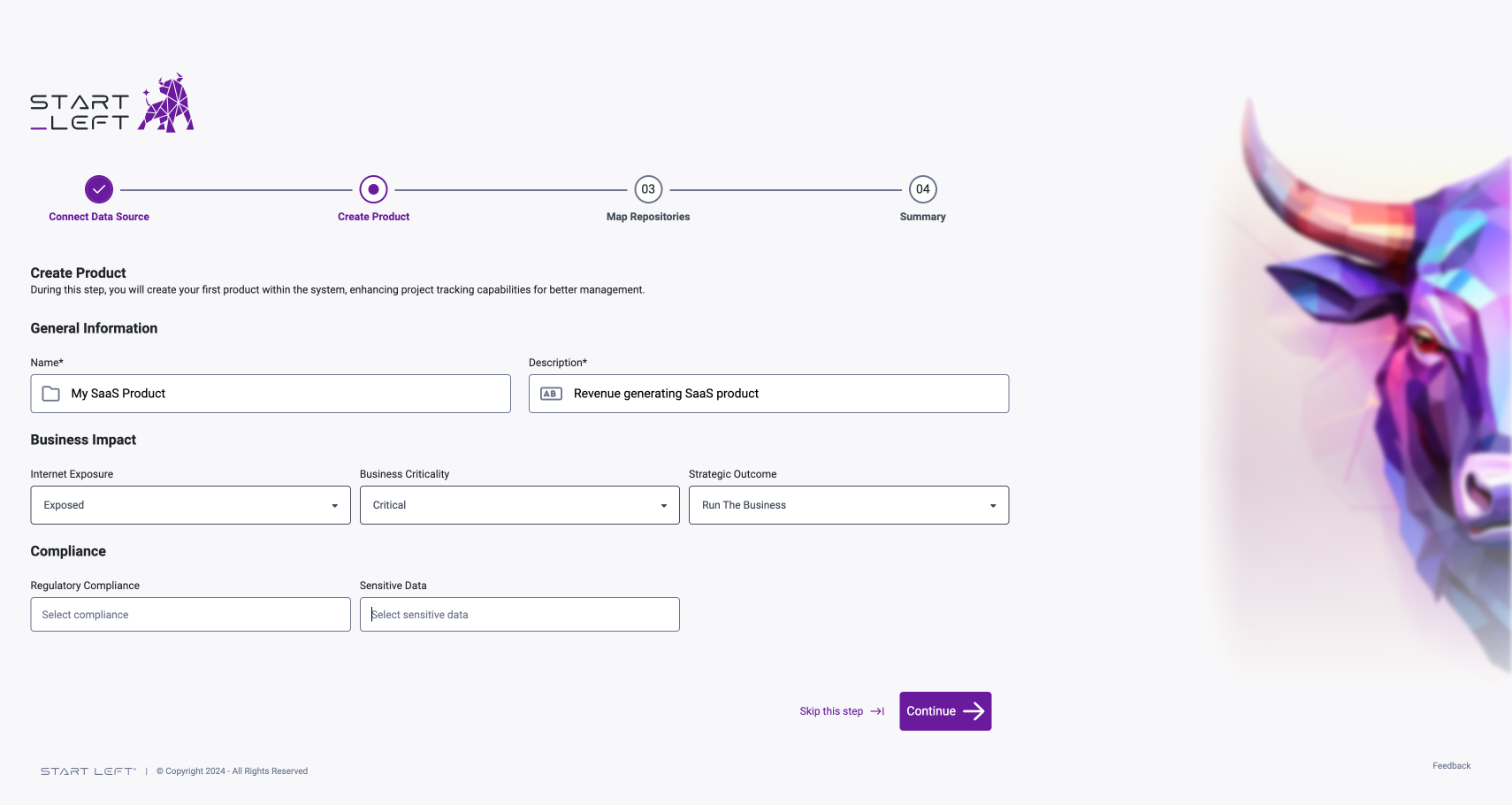
5
Map Code Repositories
Select the code repositories to be mapped to the product created in the prior step.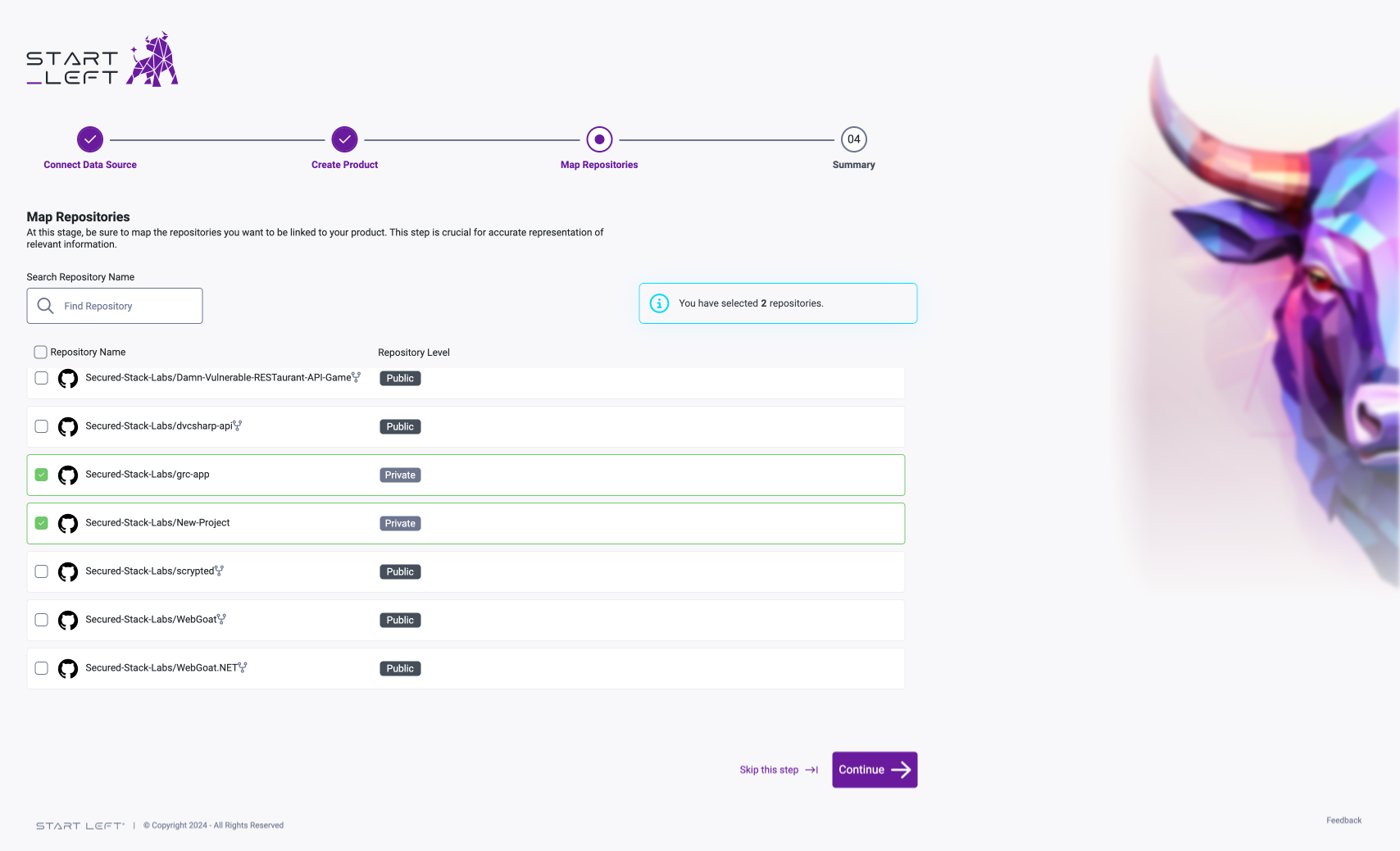
6
Finish